
Digital Signage4 min read
Televora Screen Overlays: Update Ticker Messages with MCP
A practical guide to using a Televora ticker overlay for timely screen updates—and a clear MCP workflow for reviewing and replacing its messages.
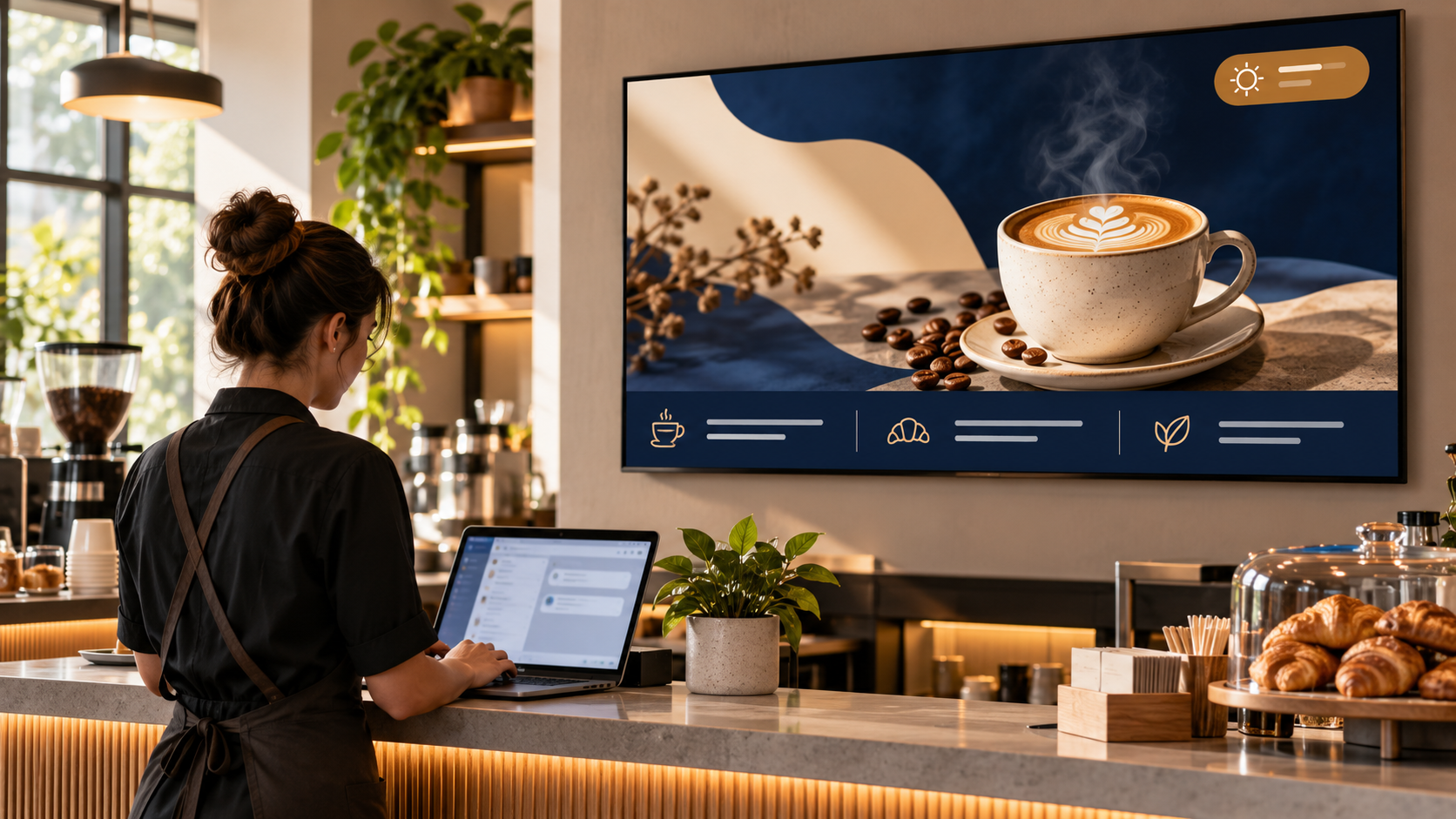
Keep a short update visible while the main screen content plays
A screen may already be showing a menu, promotion, timetable or welcome message when a business needs to share one more useful detail. A ticker overlay can place a concise message along the edge of the screen while the main content remains visible. It gives time-sensitive information a clear place without requiring the team to redesign every slide.
In Televora, ticker overlays can be managed as named items with message lists and assigned screens or locations. The exact placement and appearance depend on the overlay and screen setup. Use the ticker for brief, readable updates; leave detailed explanations to the main content or another channel.
What makes a ticker message work?
- Keep it short. State one useful fact, such as a changed class room, an event time or a current service notice.
- Make it understandable on its own. Viewers may only see part of a ticker as it moves across the screen.
- Use clear wording. Avoid unexplained abbreviations, long links and several unrelated announcements in one message.
- Set an end point. Remove or replace temporary information as soon as it expires.
- Check the display. Confirm that the message is readable at the normal viewing distance and does not compete with important content.
Update a Televora ticker through MCP
With Televora MCP connected to an authorized AI assistant, a team member can ask the assistant to inspect a ticker and prepare a message change in chat. MCP connects approved tools to the workspace; the available actions depend on the user’s account, assigned permissions and workspace approval rules.
- Find the right ticker. Ask the assistant to list available tickers and identify the one by its name, such as “Reception News” or “Studio Updates.” Check which screens or locations it serves.
- Read the current messages. Ask for the ticker’s existing message list before changing it. This gives you a chance to retain useful items and remove outdated ones.
- Describe the intended edit. Give the exact new wording and say which existing messages should stay or be removed. Include dates, times and locations in full.
- Review the complete replacement list. Televora’s ticker update action replaces the message list as a whole. Ask the assistant to show every message in the proposed final list so nothing is removed accidentally.
- Confirm scope and approval. Check the ticker, target screens and final wording. The change may require approval, depending on workspace policy and permissions.
- Verify the result. Read the ticker again or check the affected screens after the update. Confirm that expired messages are gone and the new text appears as intended.
A prompt you can adapt
“Find the ticker named Reception News and show me its current messages and assigned screens. Keep the opening-hours notice, remove the expired event announcement, and add: ‘Today’s 18:00 yoga class meets in Studio 2.’ Show me the complete final message list before applying the change. If approval is required, prepare it for review.”
This instruction makes the target, retained message, removal, new wording and review step explicit. For urgent or safety-related updates, verify the source and wording with a responsible person before approving the change.
Permissions and a reliable review routine
Connect each person through their own Televora account and grant only the screen and content access they need. Workspace owners can configure approval rules, and MCP activity can be reviewed. Use a final human check for prices, opening hours, schedule changes and public notices. If a message becomes stale, update it promptly rather than assuming that the ticker will expire automatically.
Frequently asked questions
Does changing a ticker require rebuilding the playlist?
A ticker message update changes the ticker’s message list. Whether the overlay is already assigned to the intended screens depends on the existing workspace setup.
Can I ask MCP to add one message without changing the others?
You can ask for one new message, but the supported update replaces the complete list. Read the current list first and include all messages that should remain in the final version.
Will an MCP request always publish immediately?
No. Access and approval depend on Televora workspace settings. Review the proposed wording, target and result before considering the change complete.
Make screen updates easier to manage
A concise ticker helps teams add timely context to the content already on screen. With Televora MCP, authorized staff can find the right ticker, review its current messages and prepare a complete replacement list in a conversational workflow. Explore Televora MCP to see how connected AI assistants can support controlled screen updates.
Televora for your studio or practice?
Try it free for the first month or book a personal demo.
More posts
Digital Signage4 min read
Digital Signage for Bakeries: Show Fresh Offers at the Right TimeTechnology1 min read
APIs and WebSockets: how Televora integrates with external systems