
Digital Signage4 min read
Playlist and Overlay Audio for Digital Signage with Televora
Use playlist-specific soundtracks and flexible audio overlays with library assets or live streams—without changing the visual timeline.
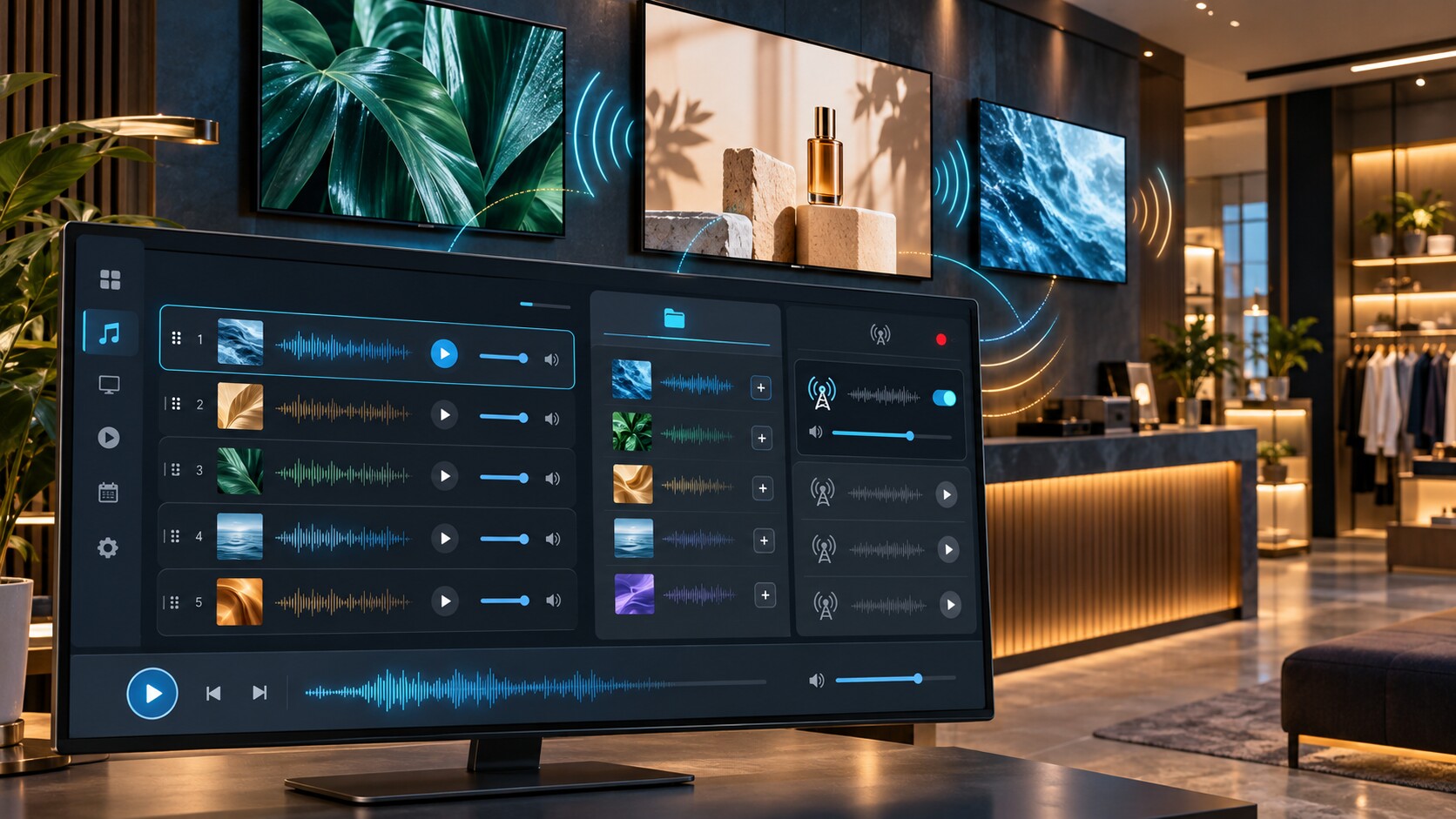
Digital signage is usually discussed as a visual medium, but sound can make a scheduled campaign more memorable, improve the atmosphere in a venue, and deliver announcements at exactly the right moment. Televora supports two distinct audio workflows: playlist audio for campaign-specific soundtracks and audio overlays for background music, live streams, announcements, and alerts.
Playlist audio and audio overlays solve different problems
Playlist audio is an ordered queue attached directly to one playlist. It plays only while that playlist is the active scheduled playlist. When another scheduled playlist becomes active, the previous audio queue stops and the new playlist can start its own queue.
Audio overlays operate at screen level. They are useful when audio should remain independent from the visual playlist—for example, continuous background music, a live radio stream, an announcement, or a high-priority alert.
Why playlist audio is useful
A campaign can have its own soundtrack without adding invisible items to the visual timeline. Audio tracks do not consume visual playlist slots, change slide durations, or appear on screen.
- Retail: give a seasonal promotion its own music while product visuals continue at their normal pace.
- Hospitality: pair breakfast, lunch, and evening playlists with different soundtracks.
- Events: prepare an ordered sequence of intro music, ambient tracks, and closing music.
- Showrooms: match audio to the campaign currently shown across the displays.
Tracks are played in their configured order and the queue returns to the first track after the last. If one file cannot be loaded or played, playback advances to the next track so a single unavailable asset does not stop the complete queue.
Build and manage the playlist audio queue
- Upload audio files to Media → Library and preview them before use.
- Open the required playlist and select the Audio tab.
- Choose Add audio from assets and select tracks from the library.
- Use the controls to change their order or remove tracks.
- Save the playlist and assign or schedule it as usual.
When the playlist becomes active, the player starts with the first audio item. The queue remains tied to that playlist, which keeps audio aligned with scheduling decisions.
Audio overlays: library assets and live streams
An Audio (Background) overlay offers more source options. Operators can add one or several audio assets from the Televora media library. A multi-asset background overlay advances through its tracks in order, while a single-asset overlay keeps the established controls for looping, volume, mute, start offset, priority, and interruption behaviour.
For a continuous external source, the overlay can use a live-stream URL. Streams remain one source rather than an asset queue. This is useful for approved radio feeds, event audio, internal stations, or another continuously available stream.
Choose the right audio workflow
- Use playlist audio when the soundtrack belongs to one campaign or schedule.
- Use a library-based audio overlay when a reusable ordered background queue should run at screen level.
- Use a live-stream overlay for a continuous external audio source.
- Use overlay priority and interruption settings for announcements or alerts that must temporarily take precedence.
Operational benefits for digital signage teams
Clear scheduling
Because playlist audio starts and stops with the resolved playlist, operators do not need to manually enable a soundtrack for every schedule change.
Independent visual timing
Designers can adjust slides and durations without rebuilding the audio sequence. Audio remains separate from the visual timeline.
Central asset control
Library audio can be uploaded once, previewed, reused, reordered, and removed from a queue without editing the visual content.
Resilient playback
Automatic advancement after a failed track helps prevent one problematic asset from blocking the remaining audio queue.
Best practices for audio in public spaces
- Check music and streaming licences for every location and intended use.
- Set a comfortable volume and test it during busy and quiet periods.
- Avoid overlapping playlist audio with an active background overlay unless that mix is intentional.
- Use descriptive asset titles so operators can identify tracks quickly.
- Test live-stream availability and keep a library-based fallback where uninterrupted audio matters.
- Review alerts and interruption priorities before deploying them across multiple screens.
A more complete digital signage experience
With playlist audio and flexible audio overlays, Televora can coordinate visual campaigns, scheduled soundtracks, reusable media-library queues, and live streams from the same signage workflow. The result is a more coherent experience without forcing sound into the visual playlist timeline.
Frequently asked questions
Does playlist audio change slide duration?
No. It runs independently and does not consume a visual playlist item.
What happens when the scheduled playlist changes?
The previous playlist queue stops. If the newly active playlist has an audio queue, it starts from its first track.
Can an overlay play several library audio files?
Yes. A background audio overlay can contain an ordered list of library assets and advance through them.
Can a live stream be added to an audio queue?
A stream remains a single URL source. Ordered queues are designed for library audio assets.
Ready to add sound to your screens? Explore Televora and build an audio workflow that matches your locations, campaigns, and schedules.
Televora for your studio or practice?
Try it free for the first month or book a personal demo.
More posts
Digital Signage5 min read
Digital Signage for Real Estate: Manage Property Offers Across Multiple ScreensDigital Signage4 min read
Digital Signage for Bakeries: Show Fresh Offers at the Right Time