
Digital Signage5 min read
Digital Signage for Real Estate: Manage Property Offers Across Multiple Screens
Keep property offers consistent across office, window and showroom screens while authorized teams update details, images and on-demand 3D tours from one workflow.
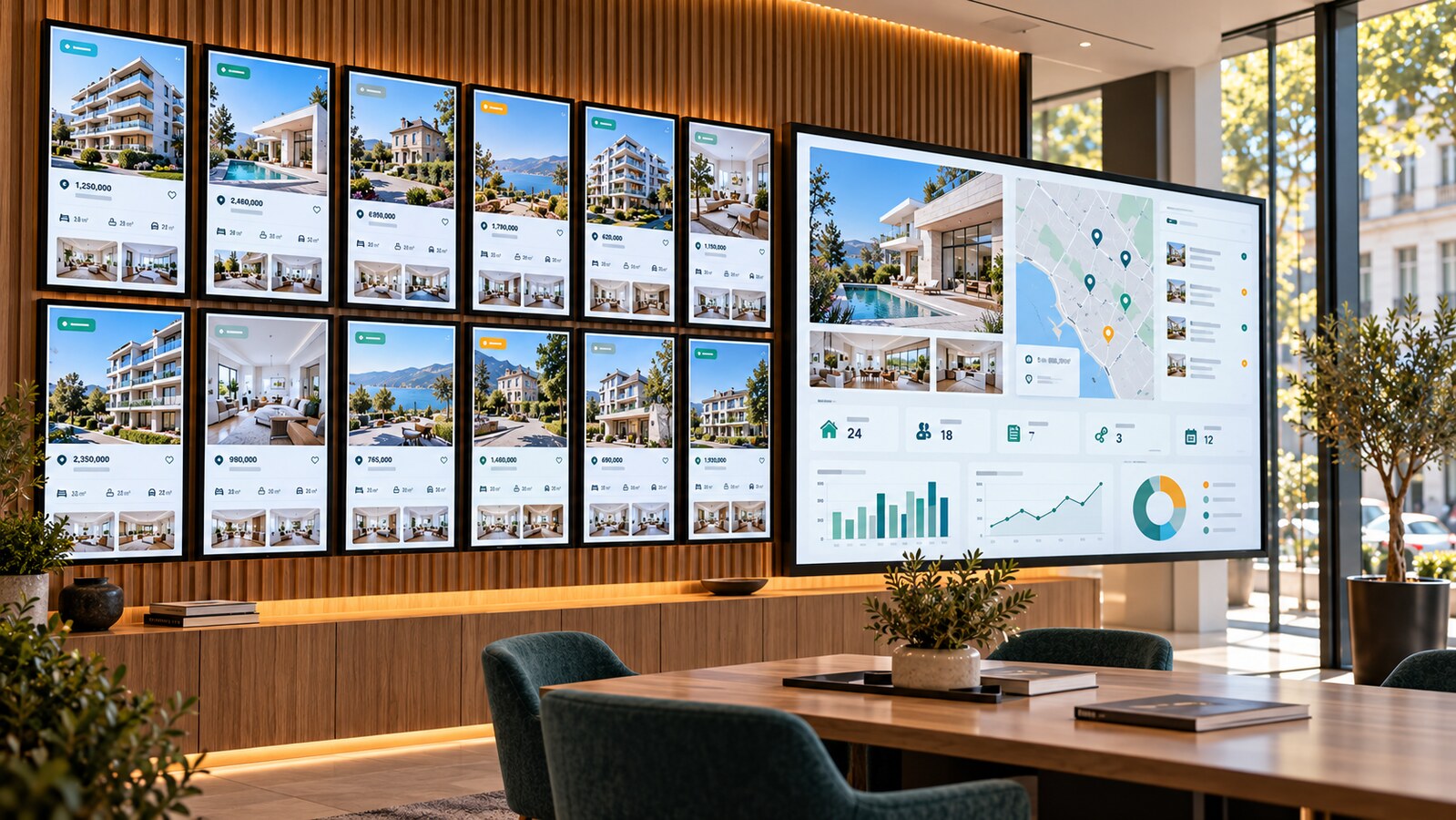
Show the right property on every screen
A real-estate agency may use screens in its storefront, reception, consultation area, showroom or at several branch offices. Each display serves a different moment in the buyer journey. A window screen can attract attention with a strong exterior image, a reception screen can rotate through available properties, and a consultation display can present a detailed gallery for one selected home.
Televora helps teams organize these property offers as screen content, place them in playlists, schedule when they appear and assign them to the intended screens or locations. Instead of preparing every display separately, the agency can work from one managed content workflow while still adapting layouts for landscape and portrait formats.
Manage property information from a structured source
Property content changes frequently: price, availability, floor area, room count, energy information, viewing dates and contact details can all require updates. A practical setup keeps these values in a structured, trusted source and maps them to reusable display layouts. Depending on the configured workflow, that source can be Televora content data, a CSV or spreadsheet, or an approved API connection.
Each listing should include a responsible owner, a last-checked timestamp and a review date. Before a change reaches public screens, verify legally relevant property details against the approved listing source. If data is missing or stale, use a neutral fallback such as “Details available on request” rather than displaying an unverified value.
Update many screens without rebuilding every offer
- Prepare reusable layouts. Define fields for location, price, property type, rooms, floor area, availability, contact details and the main image.
- Organize properties into playlists. Group offers by branch, region, new-build project, rental or sale category.
- Target the right screens. Assign shared campaigns broadly and local listings only to the relevant office, screen group or display.
- Schedule campaigns. Run a launch, open-house invitation or featured-property sequence during an approved date and time window.
- Review playback. Check a representative landscape and portrait screen after publishing and remove expired listings promptly.
A corrected source value can flow through the configured content workflow instead of requiring a separate visual edit for every screen. The exact refresh behavior depends on the selected data source, content setup and approval process.
Use images to explain the property clearly
Property screens can rotate through an exterior view, living area, kitchen, bedroom, garden and floor plan. Use only images the agency owns or is authorized to publish. Crop them for the actual screen orientation, keep important architectural details inside the safe area and avoid packing too many facts onto one slide.
A useful sequence may begin with a strong hero image and key facts, continue with an interior gallery, then finish with a clear contact or viewing prompt. Individual playlist durations allow detailed slides to remain visible longer than short brand or transition messages.
Open an interactive 3D tour when a visitor asks
If the agency has an authorized web-based 3D model or virtual-tour URL, it can be prepared as a web-page content item and opened on a suitable consultation screen when requested. This is a configured workflow rather than an automatic feature of every property listing.
Before using it with a client, test the 3D provider on the target player, confirm browser compatibility, loading time, navigation and network access, and keep a photo or video fallback ready. Public window displays are usually better suited to passive content; interactive 3D navigation works best on a screen with an appropriate input device or with an agent controlling the experience.
Keep updates controlled with permissions and MCP
Televora MCP can connect an authorized AI assistant to supported workspace actions. A team member can use conversational requests to find the correct content, inspect the current data and prepare an update. What the user can read or change depends on the connected Televora account, assigned scopes and workspace approval rules.
For example: “Find the property offer for Lindenstraße 18. Show me its current price, availability, assigned screens and last update. Change the availability to reserved using the approved CRM record, prepare the update for review and do not change the image gallery.”
Sensitive seller, tenant or buyer information should never be placed in public screen content. Use public listing data only, give each team member their own account and grant only the screens and actions required for their role.
A practical implementation checklist
- Choose one verified listing source and define who owns each field.
- Record when each property was last checked and when it must be reviewed again.
- Create landscape and portrait layouts with readable text and licensed images.
- Define screen groups by office, region or campaign.
- Set permissions for editors, reviewers and publishing roles.
- Test MCP requests with a single property and verify the result on screen.
- Test each 3D tour on its target device and prepare a static fallback.
- Remove sold, rented, reserved or expired listings according to the agency’s process.
Frequently asked questions
Can one property offer appear on many screens?
Yes. Content and playlists can be assigned to selected screens, screen groups or locations. The target structure should reflect which offices are allowed to show each property.
Can staff update a price or availability through chat?
With Televora MCP connected and the necessary permissions granted, an authorized user can inspect supported content data and prepare or apply an update. The exact action and approval requirement depend on the workspace configuration.
Can a screen display a 3D property model?
A web-based 3D tour can be used through a configured web-page content workflow when the provider, player and input method are compatible. Test the complete experience before offering it to visitors.
How do we prevent outdated property information?
Use one trusted source, assign an owner, store a last-checked date, define a review cadence and remove expired offers promptly. Permissions and approvals help control who can change and publish the data.
Make property displays easier to manage
Televora gives real-estate teams a structured way to distribute property offers, images and scheduled campaigns across multiple screens. With controlled permissions, verified source data and an optional MCP workflow, updates can remain fast without losing accountability. Explore Televora and plan a screen workflow for your property portfolio.
Televora for your studio or practice?
Try it free for the first month or book a personal demo.
More posts
Digital Signage4 min read
Digital Signage for Bakeries: Show Fresh Offers at the Right TimeDigital Signage4 min read
Televora Screen Overlays: Update Ticker Messages with MCP