
Digital Signage4 min read
Digital Signage Playlist Scheduling: The Right Content at the Right Time
A practical guide to recurring schedules, screen groups, location targeting, priorities and timeline checks for digital signage playlists.
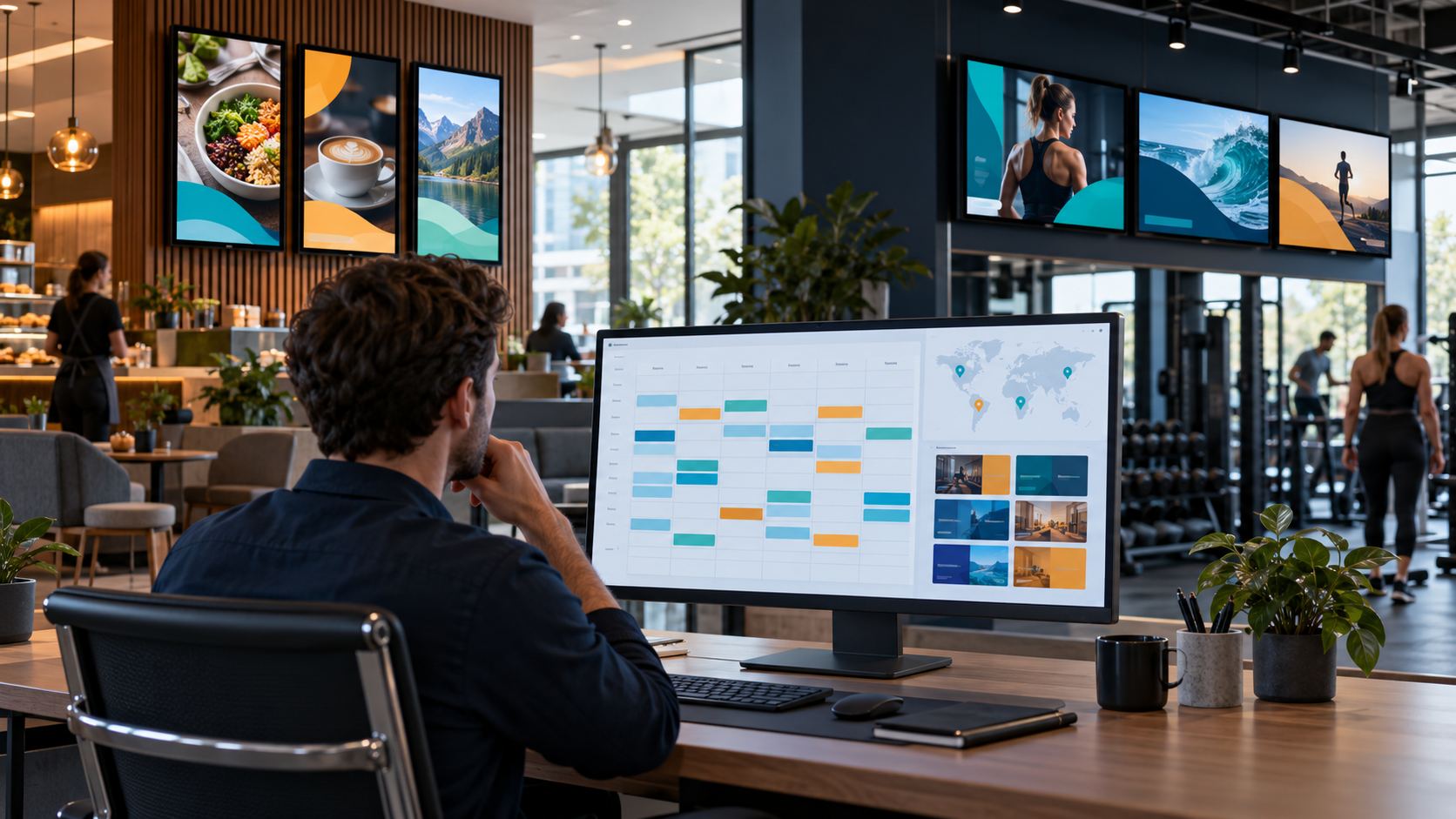
Put the right playlist on the right screen at the right time
A digital signage playlist may contain everything a screen needs to show, but viewers do not need every message all day. A gym might show class information before and after work, a café can feature breakfast in the morning and lunch later, and different branches may need local announcements. Scheduling playlists by day, hour and location helps teams match screen content to the real rhythm of each site.
In Televora, a playlist is the ordered set of content items for playback. A schedule determines when and where one or more playlists should run. Together, they make it possible to manage recurring screen content across individual displays and multiple locations.
Build the schedule in three parts
- Choose the time period. Set when the schedule begins and ends. Use a one-time rule for a short campaign, or a daily or weekly rule for recurring programming.
- Set the hours and days. Add a daily time window, such as 07:00–11:00, or choose the weekdays that should use a weekly schedule. Create separate windows when the day has distinct periods, for example morning, lunch and evening.
- Select the screens. Target all screens, a hand-picked group of screens, or a dynamic group based on locations or tags. This lets a central team reuse a schedule while still directing local content to the right branches.
For example, a fitness business could run a “Morning Classes” playlist from 06:00 to 10:00 on weekdays at all gym locations, then use a separate weekend schedule with different class times. A notice for one branch can be assigned only to that location or to a tag used for its reception screens.
Plan playlists around the audience
Start by listing the content that changes during the week: opening hours, menus, class timetables, local offers, events or safety notices. Group messages that share an audience and time window into a playlist. Keep evergreen content in a separate playlist so it can be reused without rebuilding the schedule.
Use clear names such as “DE – Cologne – Weekdays – Morning” or “Reception – Opening Hours” so another team member can understand the purpose at a glance. Define who owns each schedule and when temporary content should expire.
Distribute content across locations without losing local control
A multi-location signage system needs both consistency and flexibility. Central teams can assign a standard playlist to all screens, while location-based or tag-based targeting directs local information to selected branches or screen groups. When screens need different messages at the same time, create separate schedules for the relevant targets and give them meaningful names.
Televora can also schedule more than one playlist in a schedule using weighted playlist slots. This is useful when a schedule should select among several approved playlists according to their configured weights. Use it only when variation is intended; choose a single playlist when every playback must follow a fixed sequence.
Avoid overlaps, gaps and time-zone mistakes
- Check schedule priority. If two schedules can apply to the same screen and time, decide which one should take precedence and set priorities deliberately.
- Preview a screen timeline. Inspect the upcoming timeline for a representative screen. It can reveal the schedule that wins, overridden schedules, overlapping periods, priority ties and idle gaps.
- Confirm the time basis. Use the correct local date and time for the workspace or location. When teams operate across time zones, document which zone the schedule follows and include the UTC offset when setting timestamps.
- Keep a fallback ready. Decide what should play when no schedule applies, and make sure campaign playlists stop at the intended end time.
- Test a representative screen. Check one screen from each target group before scaling a schedule to every location.
A simple weekly planning checklist
Before publishing a schedule, confirm the playlist is approved, the start and end dates are correct, the days and hours match the venue, and the target includes the intended screens or locations. Review overlaps and idle periods, verify any weighted selection, and assign an owner for future updates. After launch, check the timeline again and confirm the expected content is playing.
Frequently asked questions
Can a digital signage playlist run only on selected weekdays?
Yes. A weekly schedule can specify its active days and time window, within the schedule’s overall start and end dates.
Can one playlist be assigned to several locations?
Schedules can target all screens, selected screens, or dynamic groups based on locations or tags. Choose the target that fits how your screens are organized.
What happens if two schedules overlap?
Schedule precedence and priority determine which schedule applies. Use the screen timeline or screen resolution tools to inspect the winning schedule, overlaps and any tie before relying on the setup.
Make screen programming easier to manage
Clear playlists and well-planned schedules help teams keep screen content relevant without updating every display by hand. Organize content by audience, set recurring hours, target the right screens and review the timeline before rolling out changes. Explore Televora to see how it can support your digital signage workflow.
Televora for your studio or practice?
Try it free for the first month or book a personal demo.
More posts
Technology1 min read
APIs and WebSockets: how Televora integrates with external systemsDigital Signage4 min read
School Digital Signage Schedules: Update Daily Timetables and Urgent Notices