
Digital Signage4 min read
School Digital Signage Schedules: Update Daily Timetables and Urgent Notices
A practical guide to keeping school screens useful: plan recurring schedules, target the right displays, and handle daily or urgent changes through connected data sources or Televora MCP.
Keep school screens aligned with the day
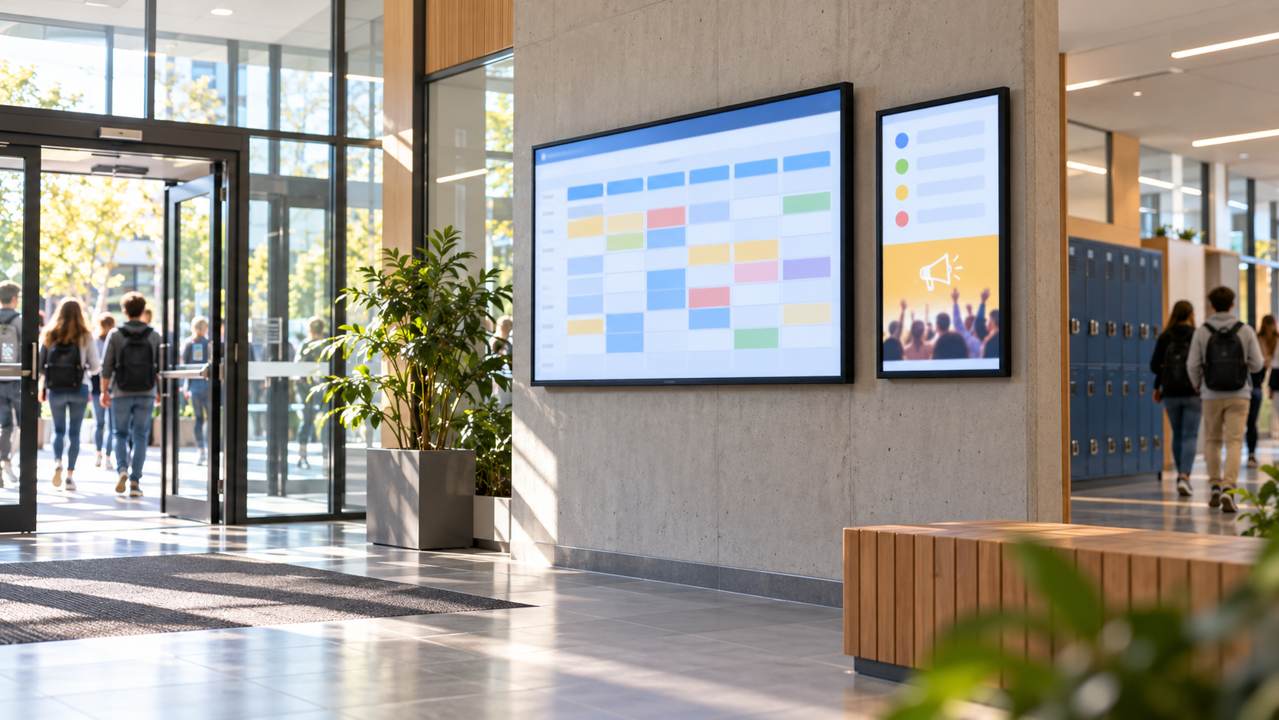
School information changes throughout the week. A detailed timetable may help students find classes, while a smaller display near the entrance can highlight today's schedule and an upcoming weekly event. When each display is updated separately, a room change or new announcement can leave some screens out of date.
A digital signage workflow can bring schedules, content, timing and screen selection together. With Televora, teams can organize content into playlists, schedule when playlists run, and target all screens, selected screens, or groups based on locations and tags.
Plan recurring schedules once
Separate information that follows a regular routine from information that changes at short notice. Weekly timetables, lunch information and recurring club notices can be prepared in advance. Set the date range, days and hours for each playlist, then choose the displays that should show it.
For example, a school could show a detailed timetable on a large foyer display during arrival and break times, while a smaller portrait screen presents a concise daily overview. A weekly event announcement can be included in the daily playlist or scheduled to appear only in the days leading up to the event.
Send the right content to the right screens
Not every message belongs on every display. A central announcement may be appropriate for the main entrance, while a room-specific timetable should appear only near that department. Target schedules to individual screens or groups associated with a building, campus or tag. Clear names such as “Main Building – Entrance – Morning” make future edits easier.
Before a schedule goes live, review its start and end dates, time window, target screens and priority. If schedules overlap, check which one takes precedence and confirm that no important time slot is left without the intended content.
Refresh daily information from a connected spreadsheet
A spreadsheet can be a practical source for structured information such as room, period, class, event, date and location. In a configured connector workflow, the school can maintain source data in a tool such as Google Sheets and sync validated rows to the relevant Televora content. This reduces repeated manual entry when a timetable changes every day.
- Agree on the source of truth, data owner and review time.
- Use consistent columns and stable identifiers for rooms, groups and events.
- Connect the source through an available, authorized connector and map it to the correct content fields.
- Test incoming data and check a preview before making it available on screens.
- Set a refresh routine and a fallback message for missing or stale data.
The exact connector and refresh behavior depend on setup and permissions. A spreadsheet edit does not necessarily appear on screens immediately unless the sync and publishing workflow is configured to do that.
Handle urgent changes through Televora MCP
When a room changes, an event is postponed or the school needs to share a time-sensitive notice, an authorized MCP client can interact with Televora using supported tools. Depending on permissions, a team can update content data, adjust a schedule or request a time-limited override for the appropriate screens.
A safe urgent-update workflow is simple: identify the affected location, confirm the wording and source, choose the screen group, set an expiry or end time, then verify the resulting schedule or playback. Keep the regular timetable available to resume after the temporary notice. MCP actions follow workspace permissions and approval rules; they do not grant unrestricted access.
Make updates reliable and easy to review
- Assign an owner to each timetable or announcement source.
- Include a last-checked date and an expiry for temporary notices.
- Use a second-person review for safety, closure or emergency messages.
- Check the screen timeline after changing a schedule or priority.
- Test the layout on the actual display size and viewing distance.
Frequently asked questions
Can a school display different schedules on different screens?
Yes. Playlists can be scheduled for selected screens or groups, so a detailed timetable and a daily summary can run on different displays.
Can Google Sheets update school signage?
A connected spreadsheet workflow can provide structured data for signage when the connector, field mapping and permissions are configured. Test sync timing and review critical information before it is displayed.
Can staff make urgent changes through MCP?
Authorized MCP tools can support direct changes to Televora content or schedules. Available actions depend on granted permissions and workspace approval rules, so schools should define who may make and review urgent updates.
Build a clearer school-screen workflow
With recurring schedules, screen groups and a trusted data source, schools can keep routine information current while making room for timely announcements. Learn about Televora MCP and explore how Televora can support your digital signage workflow.
Televora for your studio or practice?
Try it free for the first month or book a personal demo.
More posts
Technology1 min read
APIs and WebSockets: how Televora integrates with external systemsDigital Signage5 min read
Digital Signage Offline: How Televora Keeps Screens Running During an Internet Outage