Digital Signage4 min read
AI-Powered Digital Signage: A Smarter Content Workflow
A practical guide to building a repeatable digital signage workflow with structured data, AI-assisted checks, creative templates and scheduled screen playback.
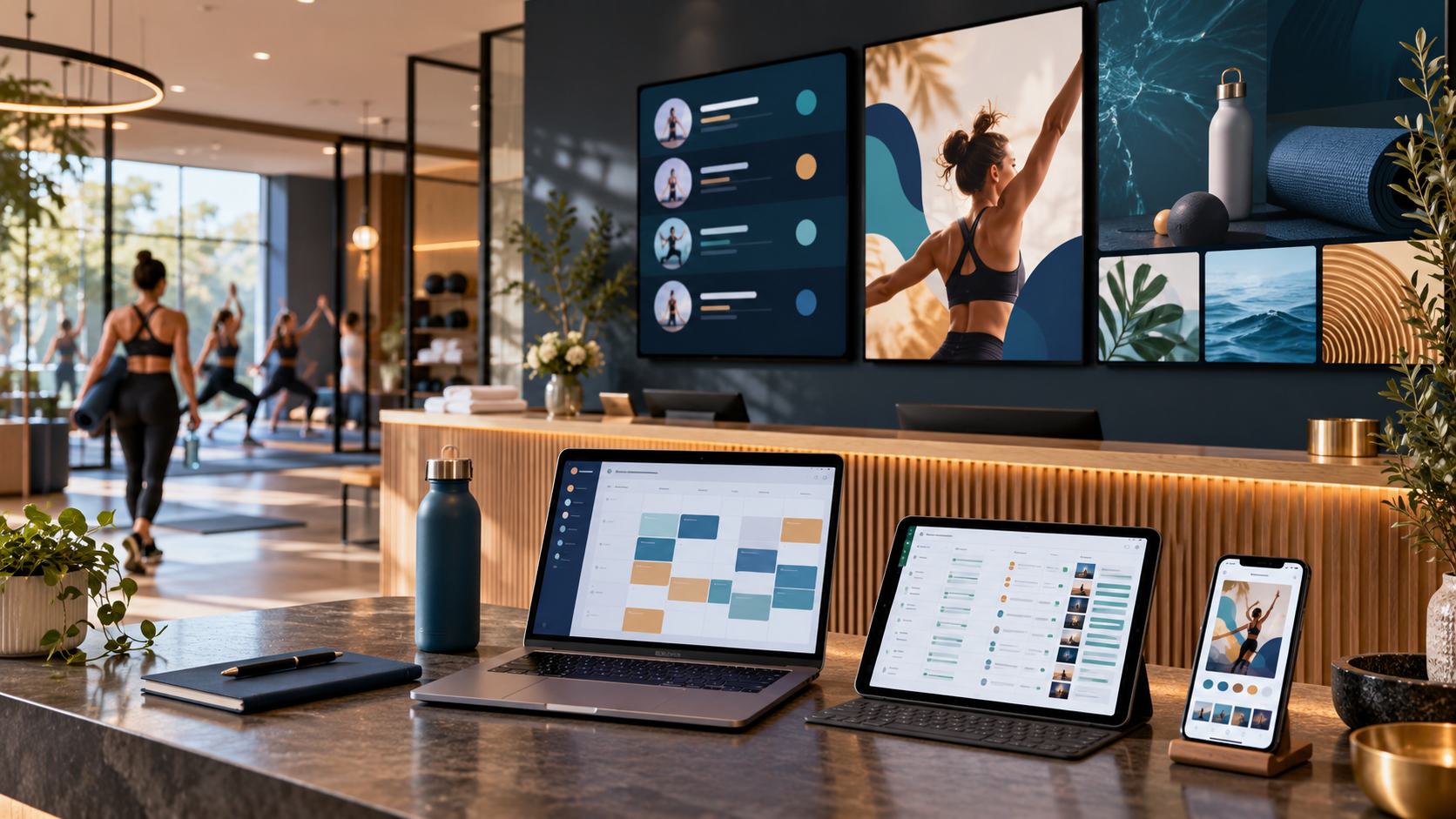
Turn screen updates into a repeatable content workflow
Digital signage works best when the right message reaches the right screen at the right time. Yet many teams still update displays one by one, copy information between tools and rebuild the same designs for every campaign. An AI-assisted digital signage workflow can make those steps easier to manage while keeping people in control of accuracy and brand quality.
The goal is not to put more content on screens. It is to make useful content easier to plan, produce, approve and refresh across locations.
What does an AI-powered digital signage system do?
A modern digital signage system brings together content creation, screen scheduling and playback. AI can support parts of the work around that system: drafting variations, summarising approved information, checking consistency or helping teams turn structured data into clear messages. A person still decides what is accurate, suitable and ready to publish.
For a gym, that could mean class schedules and membership offers. A retailer might need local promotions and opening hours. A clinic may share waiting-room guidance and service information. Each setting has different audiences, screen sizes and approval needs.
A practical workflow: Sheets, AI, Canva and Televora
- Organise source information. Keep recurring data in a structured source such as Google Sheets: class names, times, locations, campaign dates or product details. Record who owns the data and when it was last checked.
- Use AI for a first pass. With an approved connector or workflow, AI can help turn rows into short, audience-friendly copy, create language variants or flag missing fields. Treat generated text as a draft. Verify names, dates, prices and claims against the source before use.
- Design in Canva. Reusable Canva templates help teams keep colours, typography and layout consistent while changing the message or image. Prepare versions for the actual screen format, including landscape, portrait or split-screen layouts.
- Publish and schedule in Televora. Add approved creative to a content item or playlist, assign it to the right screens and schedule when it should appear. This keeps routine updates manageable across one site or several locations.
- Review what is playing. Check the live screen output, remove expired campaigns and set a regular review date for information that can change.
Google Sheets and Canva can be part of a connected workflow where the available connectors, APIs and permissions support it. Setup varies by account and process; confirm which actions are available before promising full automation.
Where dynamic digital signage content helps
- Fitness studios: class timetables, trainer introductions, membership campaigns and event reminders.
- Retail and hospitality: product highlights, daily offers, menus and location-specific announcements.
- Schools and training centres: room changes, daily notices, learning prompts and event schedules.
- Waiting rooms: service information, health education and queue or appointment guidance reviewed by the organisation.
For time-sensitive or high-impact information, use a named reviewer and a clear source. Medical, financial, legal and breaking-news content needs extra fact-checking and a defined update process.
How to start without over-automating
Begin with one screen group and one recurring content type. Choose a trusted source, create a template, define who approves each update and decide how often the information should be checked. Then measure practical outcomes such as time spent on updates, fewer expired messages and whether viewers can read the content from a normal viewing distance.
Automate repeatable steps only after the manual workflow is reliable. Keep a fallback message ready in case a data source or connector is unavailable, and make sure expired promotions do not remain on screen.
Frequently asked questions
Can AI update digital signage automatically?
It can help prepare or move content through a workflow when the necessary tools and permissions are configured. Teams should review important facts and approve content before it appears on public screens.
Can Google Sheets feed a digital signage screen?
A spreadsheet can serve as a structured source in a connected workflow. The exact method depends on available connectors or APIs, the data format and the screen-content setup.
What is the difference between digital signage software and a design tool?
A design tool such as Canva helps create visual assets. Digital signage software manages content assignment, playlists, scheduling and playback on screens. Many teams use both as parts of one workflow.
Make screen content easier to manage
Televora helps teams organise digital signage content and manage what plays across their screens. Start with a small workflow, connect the tools that fit your process and build a repeatable way to keep screen content useful and current. Explore Televora and see how it can fit your screen setup.
Televora for your studio or practice?
Try it free for the first month or book a personal demo.
More posts
Technology1 min read
APIs and WebSockets: how Televora integrates with external systemsDigital Signage4 min read
School Digital Signage Schedules: Update Daily Timetables and Urgent Notices